Development Automation
Send a message from your phone and let WinClaw remotely control Cursor to complete real coding tasks on your computer.
WinClaw supports remotely controlling Cursor, so you can keep your development moving even when you're away from your computer. Five o'clock in the afternoon, you're on the go — open WinClaw on your phone, say one sentence, and Cursor starts writing code and doing code reviews on your computer.
What is Development Automation?
WinClaw's development automation is not simple file operations or script execution — it's about using Cursor the same way a human developer would:
- Open Cursor on your computer
- Automatically navigate to your project directory
- Enter your development request in Cursor's Agent sidebar
- Let Cursor's AI Agent actually write, modify, and review code
What you say on your phone ultimately becomes real code changes in your computer.
Install Cursor Control Tools
WinClaw provides two different tools for controlling Cursor. Install the one that fits your needs:
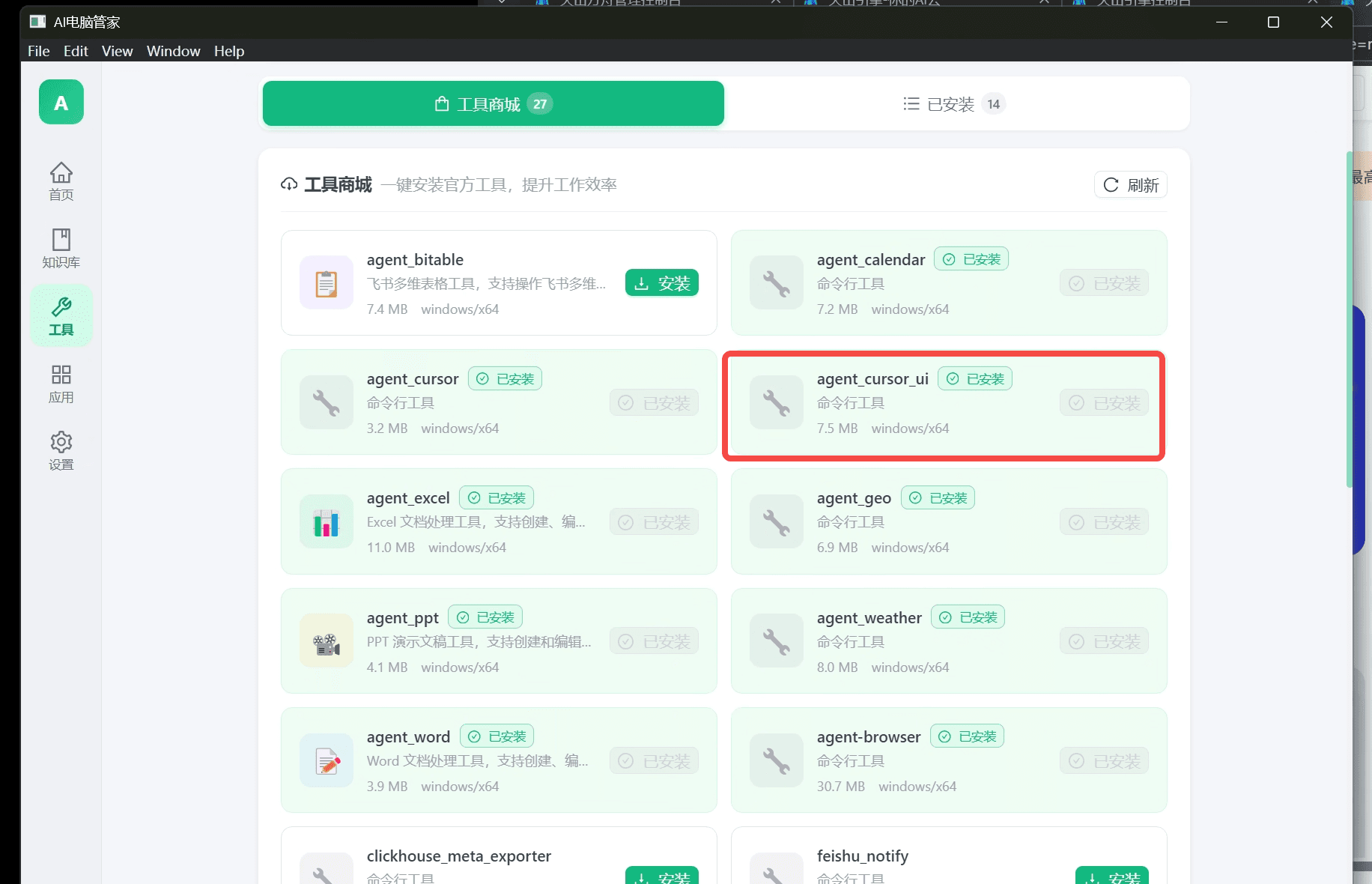
① agent_cursor_ui (Recommended for Beginners)
- Directly controls the Cursor App graphical interface
- Simulates human interactions: clicking and typing in Cursor
- No extra dependencies required — install and use immediately
- Suitable for most everyday development scenarios
② agent_cursor (For Advanced Users)
- Calls Cursor Agent via Cursor CLI
- Faster execution, better suited for automated pipelines
- Requires Cursor CLI to be installed first
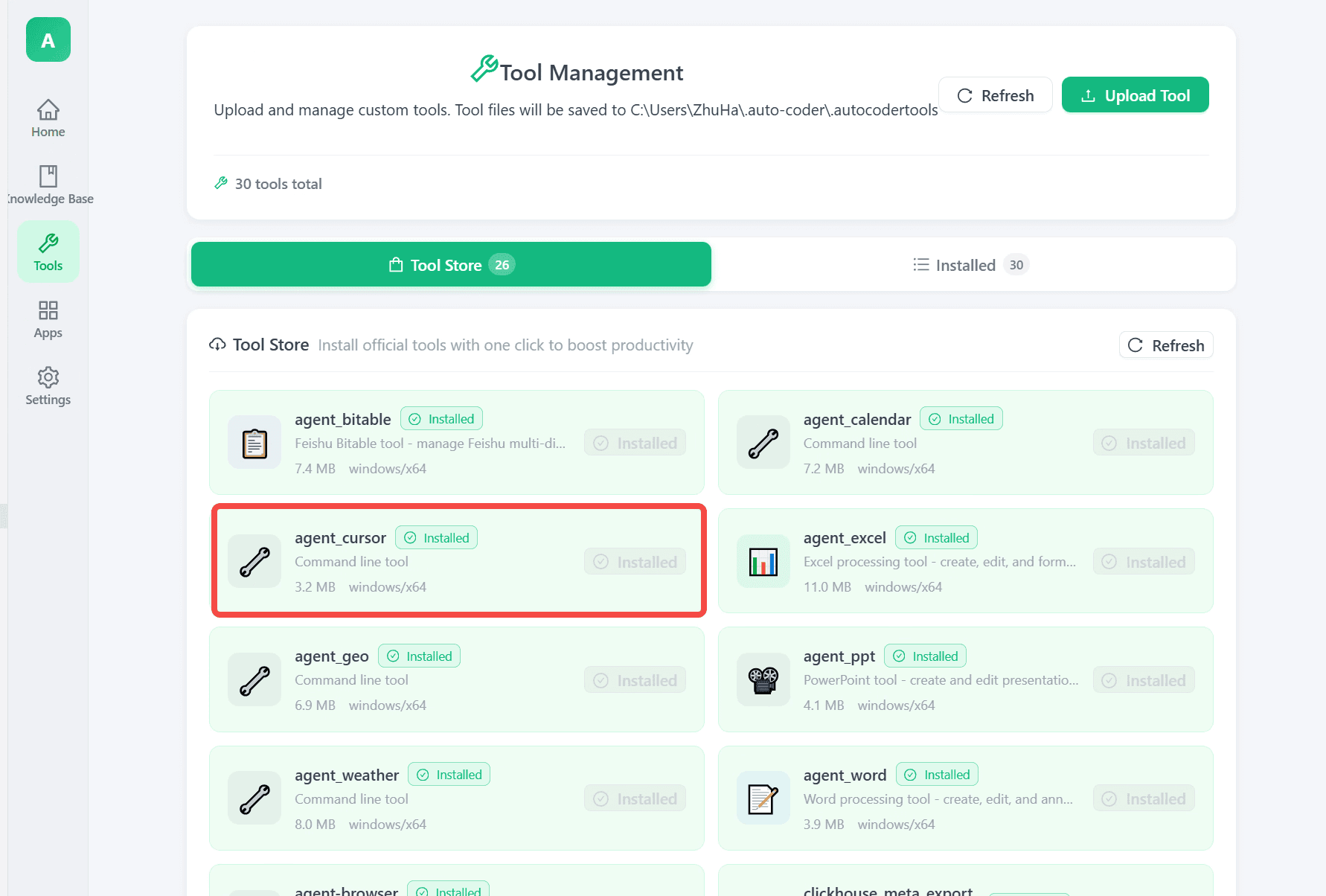
Installing Cursor CLI (Required for agent_cursor)
Cursor officially provides a command-line tool (CLI) that lets you drive Cursor Agent directly from the terminal. Find the CLI installation entry in the Cursor menu:
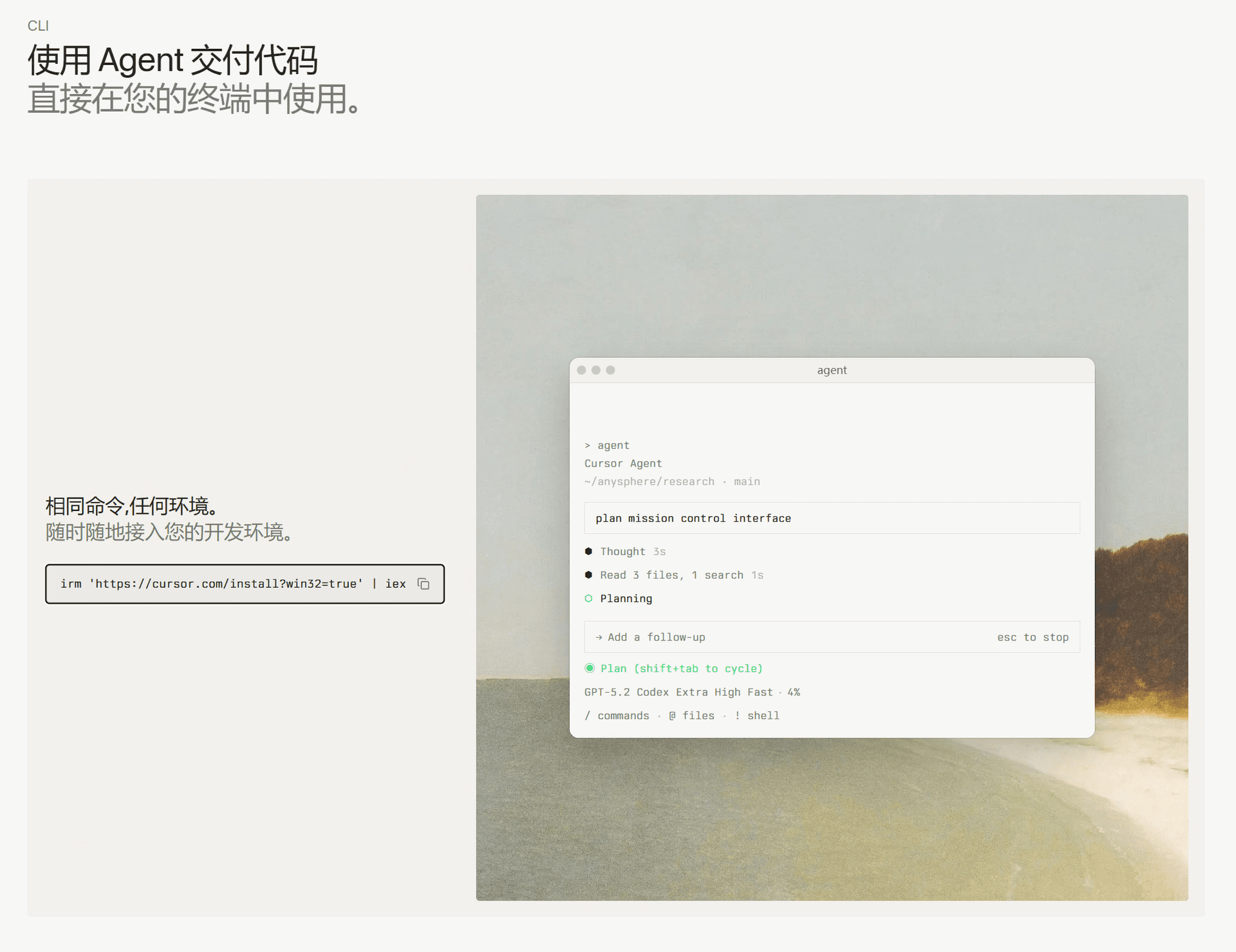
Run this single command in your terminal to install:
irm 'https://cursor.com/install?win32=true' | iex
Once installed, the agent_cursor tool is ready to use.
Real Example: Phone Command, Cursor Codes for You
Here's a real-world walkthrough of the entire flow.
Step 1: Send an Instruction from Your Phone
The user opened WinClaw on their phone and entered an instruction:
"Go to the agent cursor project under the infinitysynapses tools folder in my projects directory — first find that project directory"
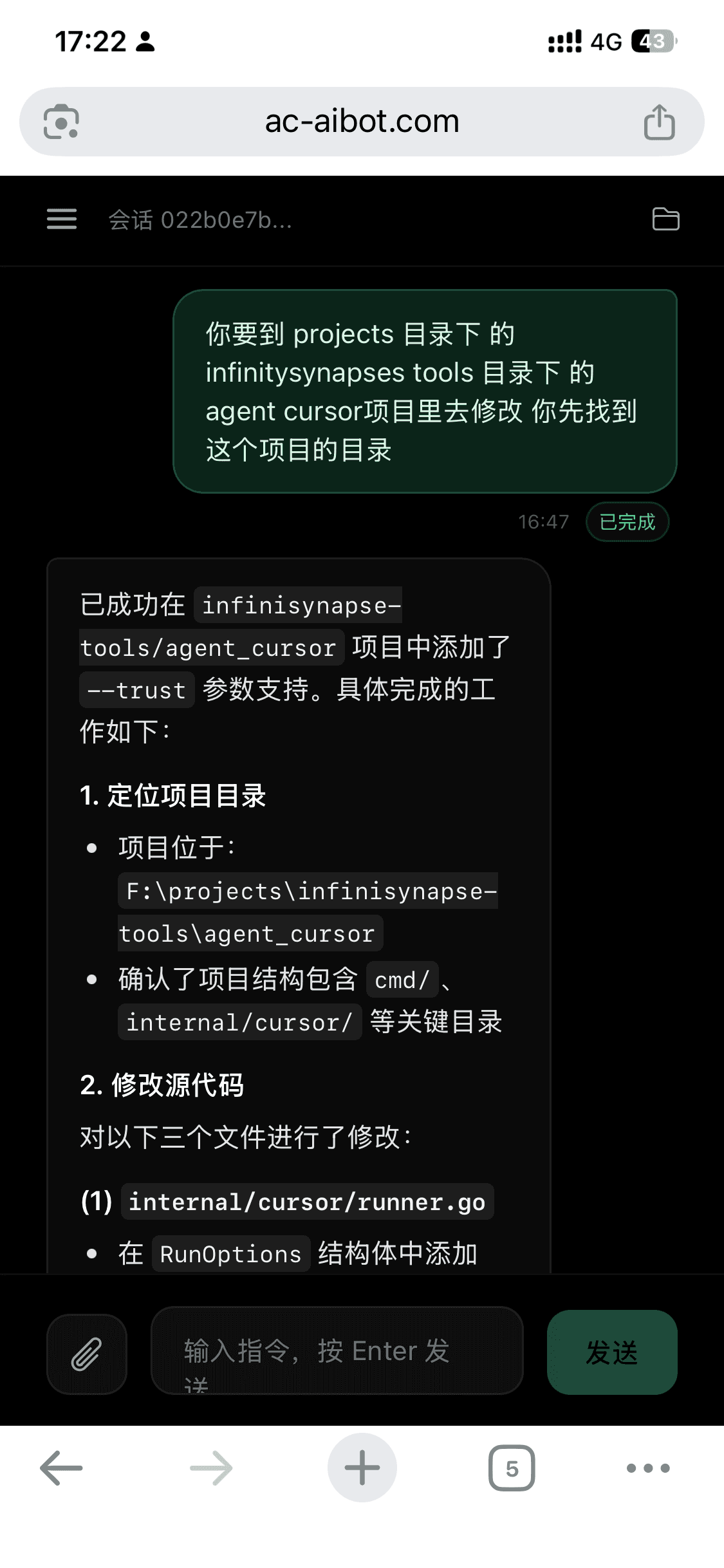
WinClaw received the instruction and executed it remotely on the computer, successfully locating the project directory and confirming the project structure. This is not just a simple file search — it requires understanding what project you're referring to and finding the actual path in your filesystem.
Step 2: Open the Project in Cursor and Enter a Task
The user sent a second instruction:
"Use the agent cursor ui tool to open this project, then enter: review the last commit"
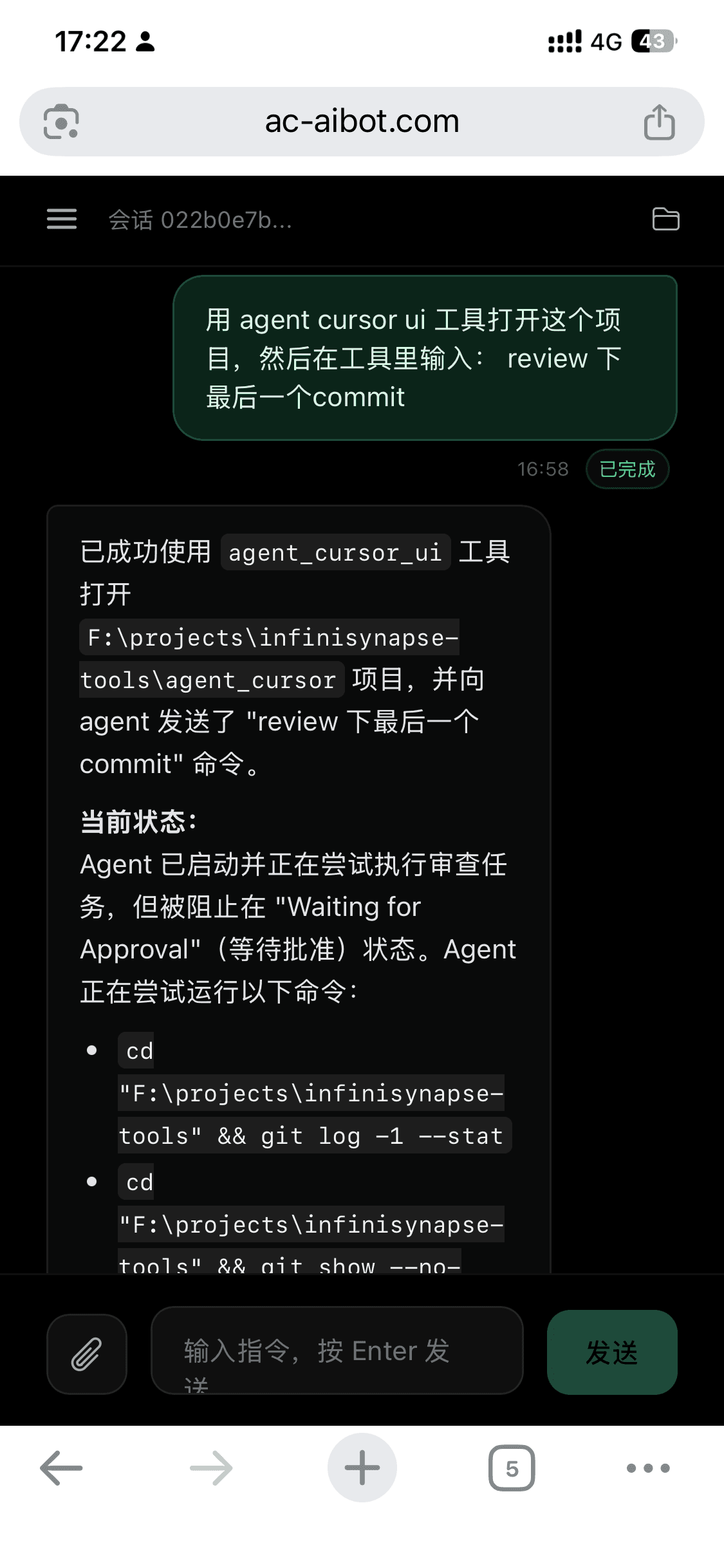
This instruction means: not just run a script, but launch Cursor, enter a task in Cursor's Agent sidebar, and let Cursor's AI do the Code Review.
At the same time, the computer desktop changed — agent_cursor_ui automatically opened Cursor and loaded the project files:
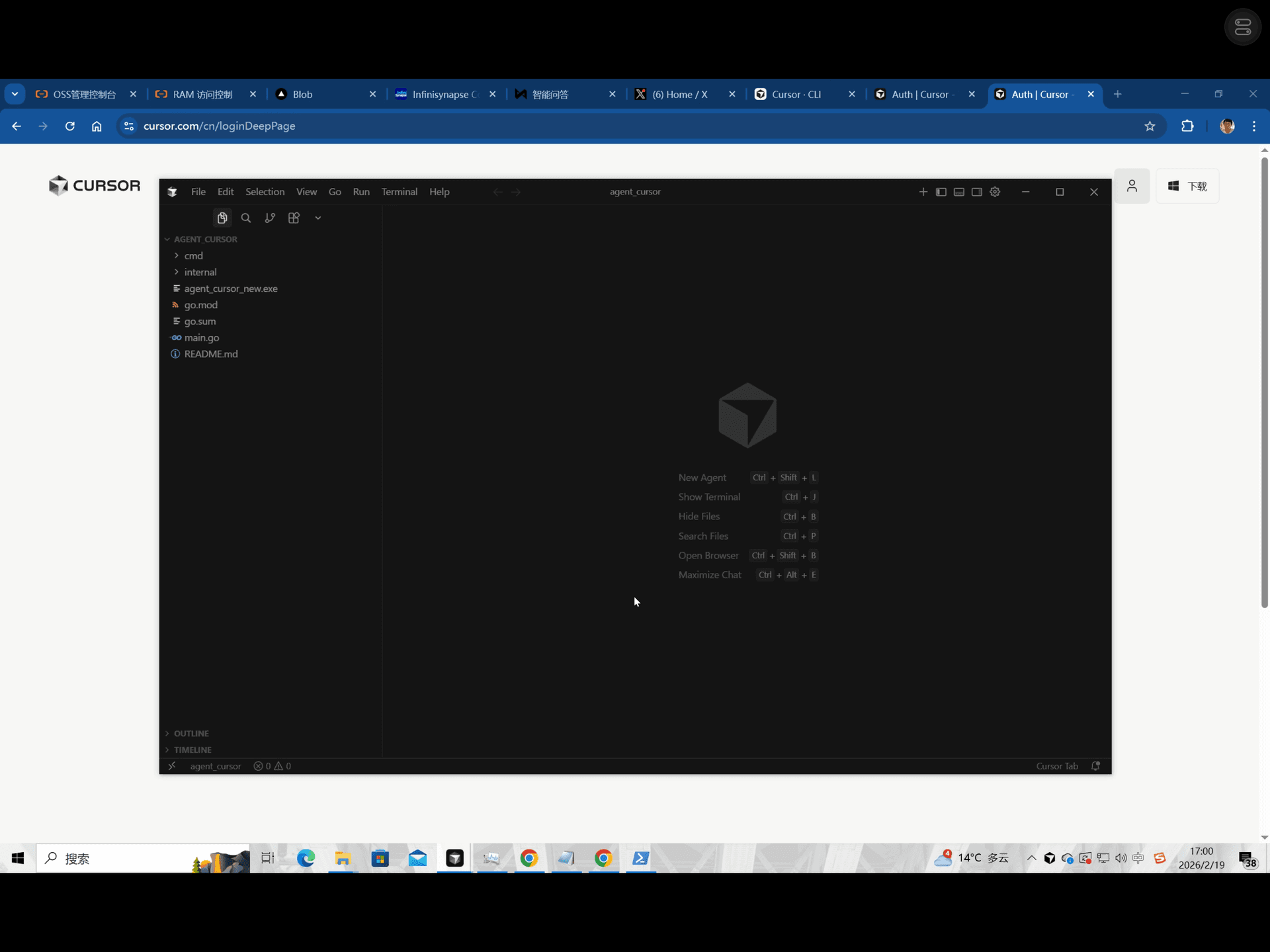
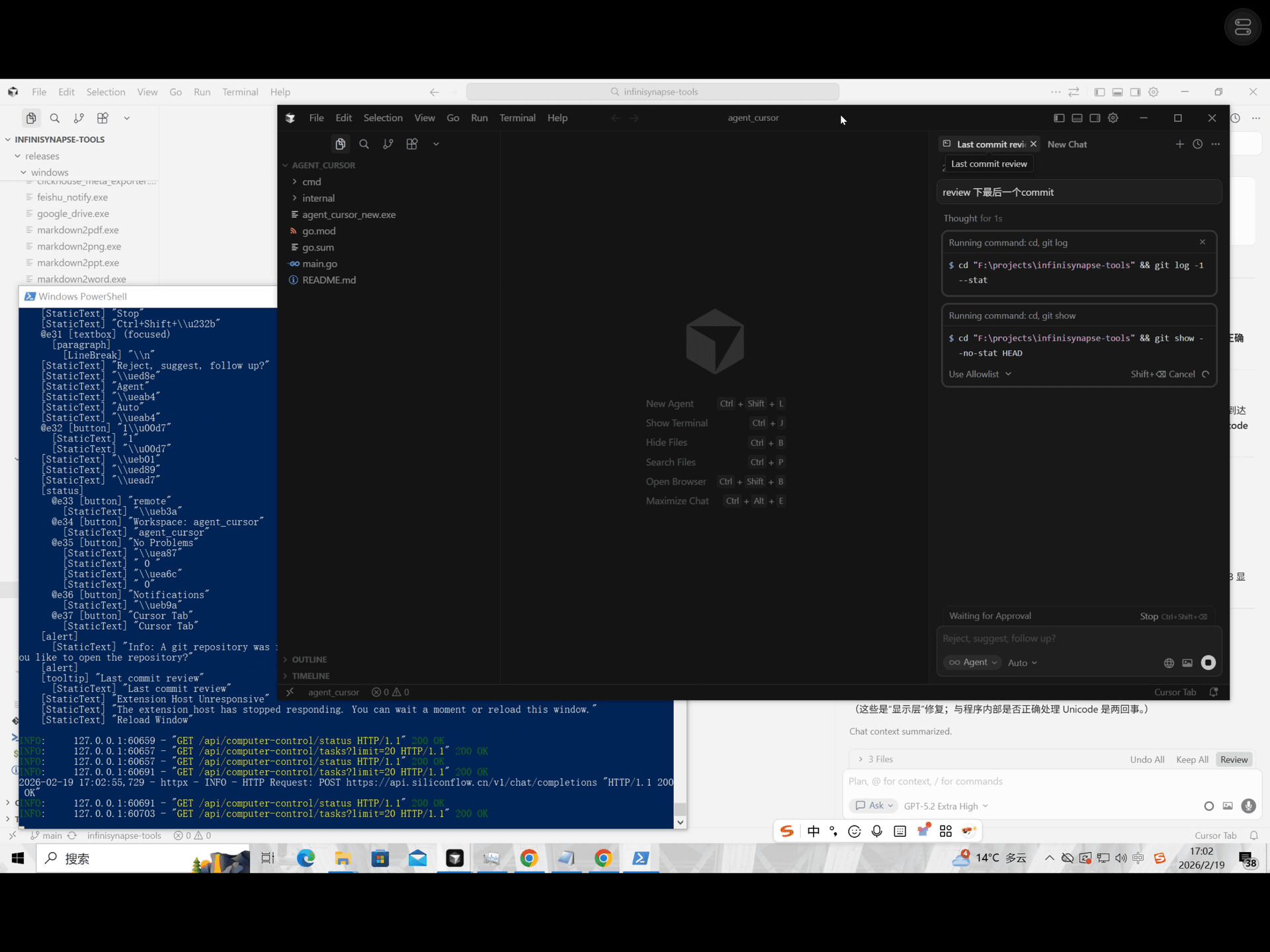
WinClaw successfully opened the project using agent_cursor_ui and sent the "review the last commit" command to the Agent. At this point, Cursor on the desktop automatically started running git log -1 --stat and git show --no-stat HEAD — performing a real code review.
Step 3: Authorization Prompt (First Time Only)
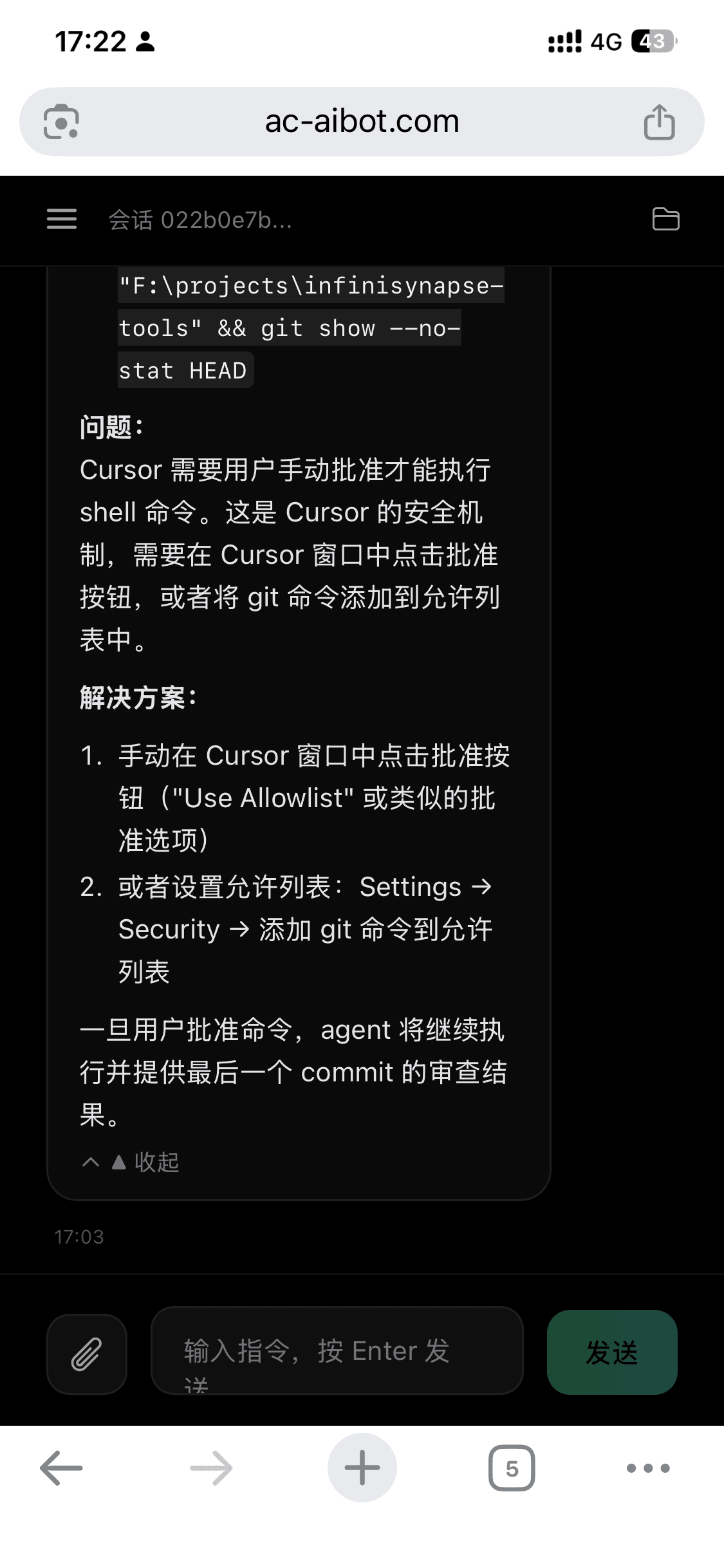
After Cursor starts running, the Agent may be blocked when trying to execute shell commands, triggering a security prompt.
At the same time, the Cursor window on your computer will show "Waiting for Approval" with the pending commands listed for your review:
WinClaw reports accurately:
Issue: Cursor requires manual approval to execute shell commands. This is Cursor's security mechanism — you need to click the Approve button in the Cursor window, or add git commands to the allowlist in Settings.
This is not a bug — it's Cursor's own security design. Cursor won't allow any program to execute commands in your project without your consent.
How to handle it:
- Walk to your computer and click "Approve" in the Cursor window
- Or add common commands to the allowlist in Settings beforehand
Once authorized, you won't need to do this again.
Step 4: Authorization Done, Results Delivered
The user replied: "OK I've approved it"
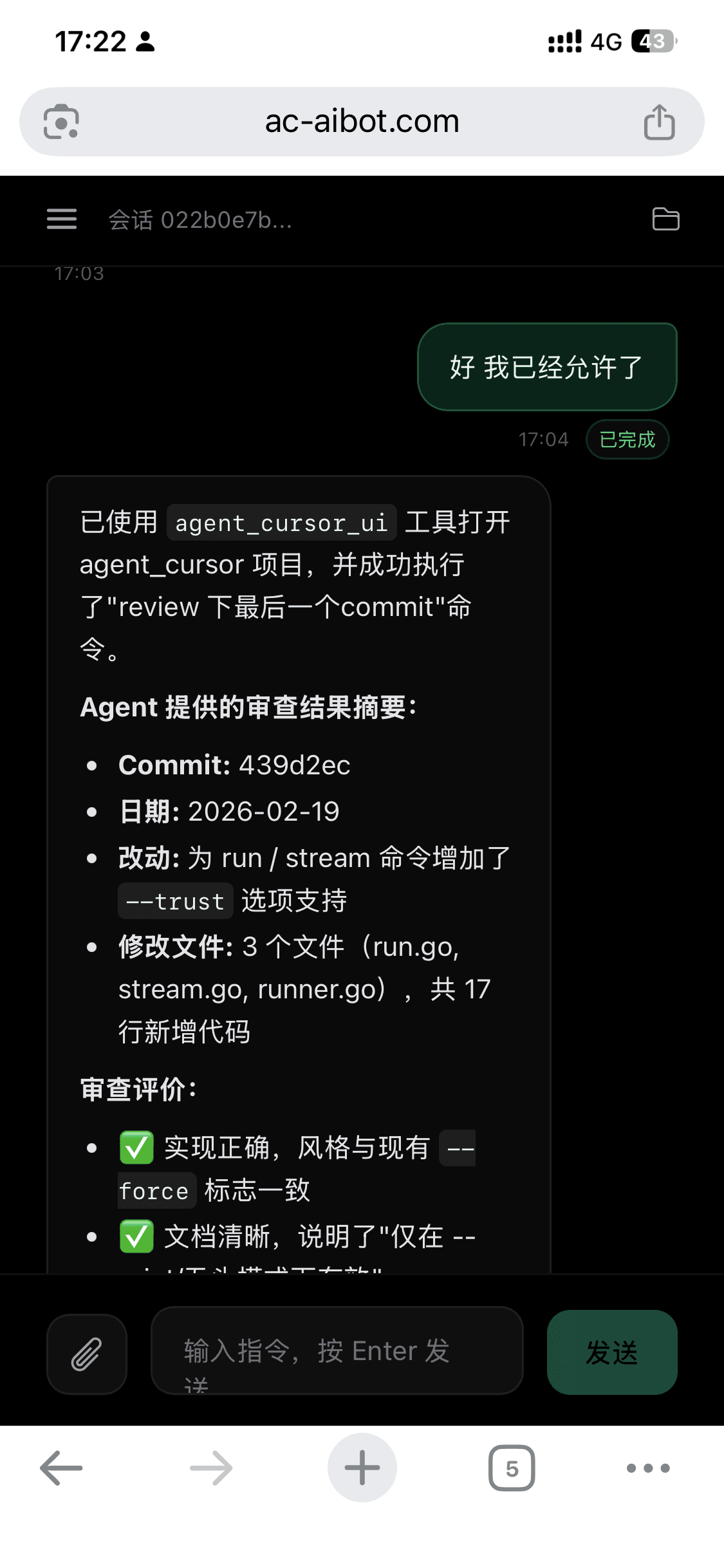
WinClaw immediately continued, and Cursor's Agent completed the Code Review. The detailed review report was simultaneously visible in Cursor's right panel on the computer:
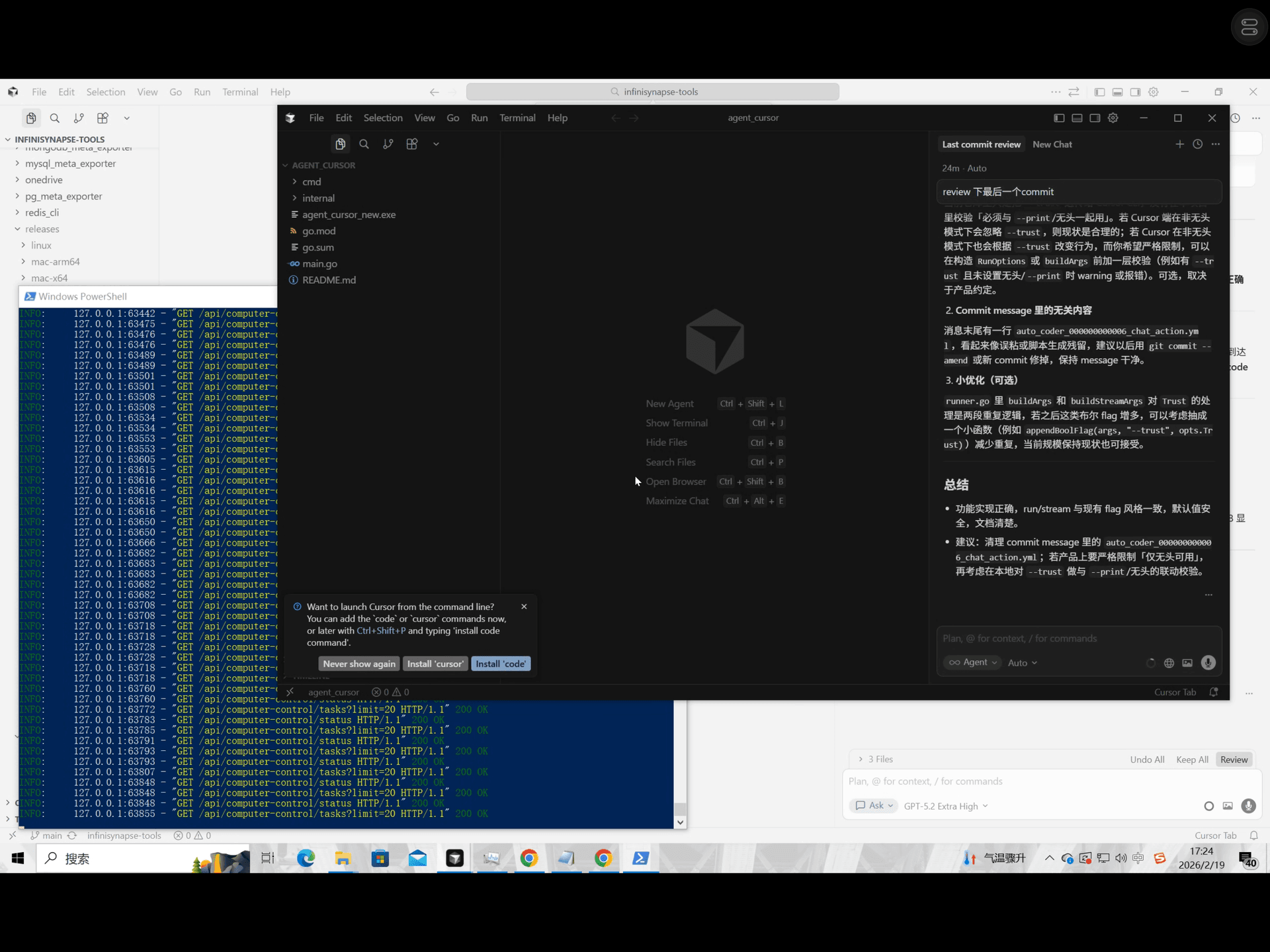
From the moment the user said "I've approved it" to receiving the review report took less than a minute. This is a real Code Review done by Cursor AI — not something WinClaw fabricated.
Automatic Notifications When Tasks Complete
After sending an instruction, you can put your phone away and do other things. When the task is done, WinClaw will proactively push a notification.
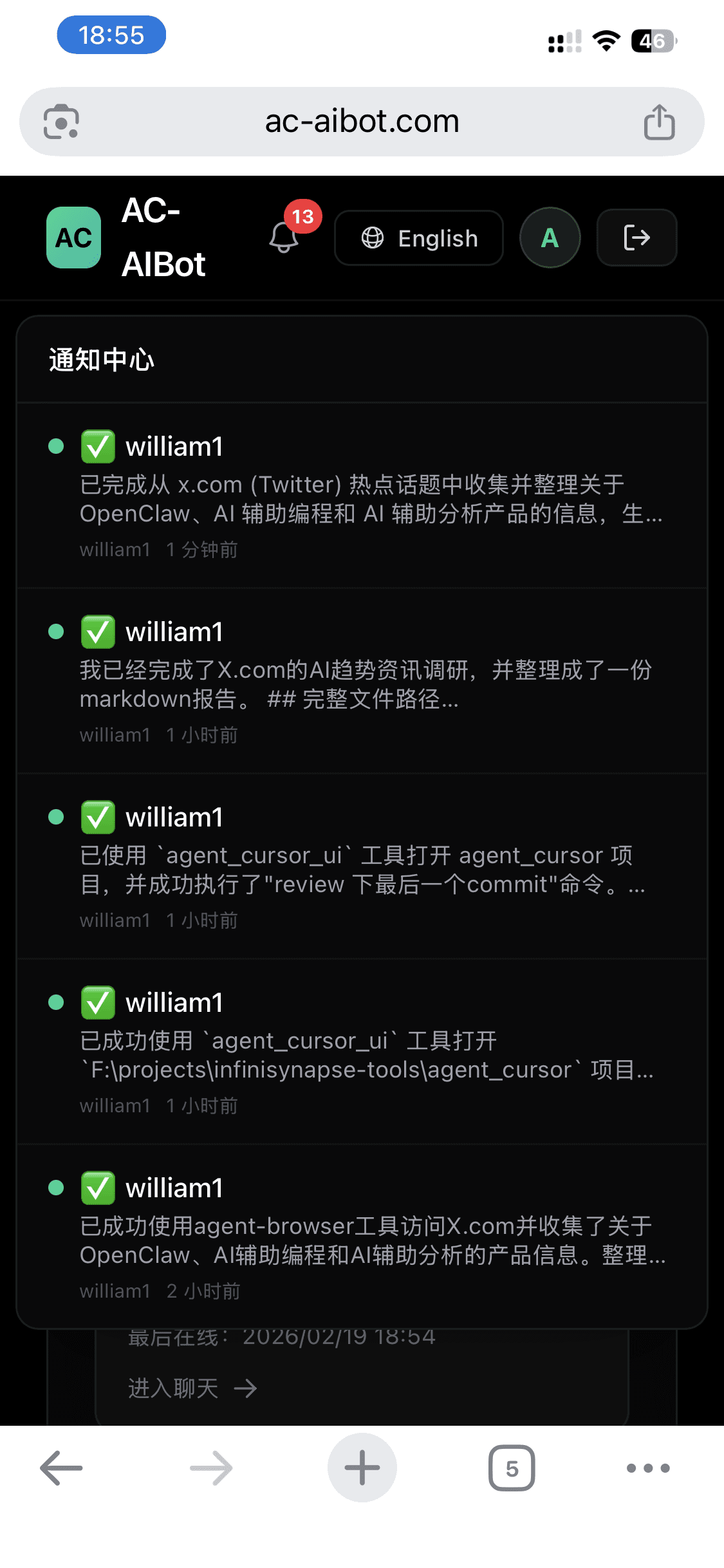
The notification center shows the completion status of every task at a glance — each step is recorded with a timestamp, so you can review the history anytime. You don't need to keep watching your phone or poll for updates.
This is the true value of "async": it frees not just your hands, but your attention.
First-Time Setup
The first time you use development automation, you'll need a few minutes to complete initial setup:
Log Into Cursor When First Opening a Project
The first time agent_cursor_ui opens a project, Cursor will show a login screen and an AI model selection page. You'll need to be at your computer for this one-time step:
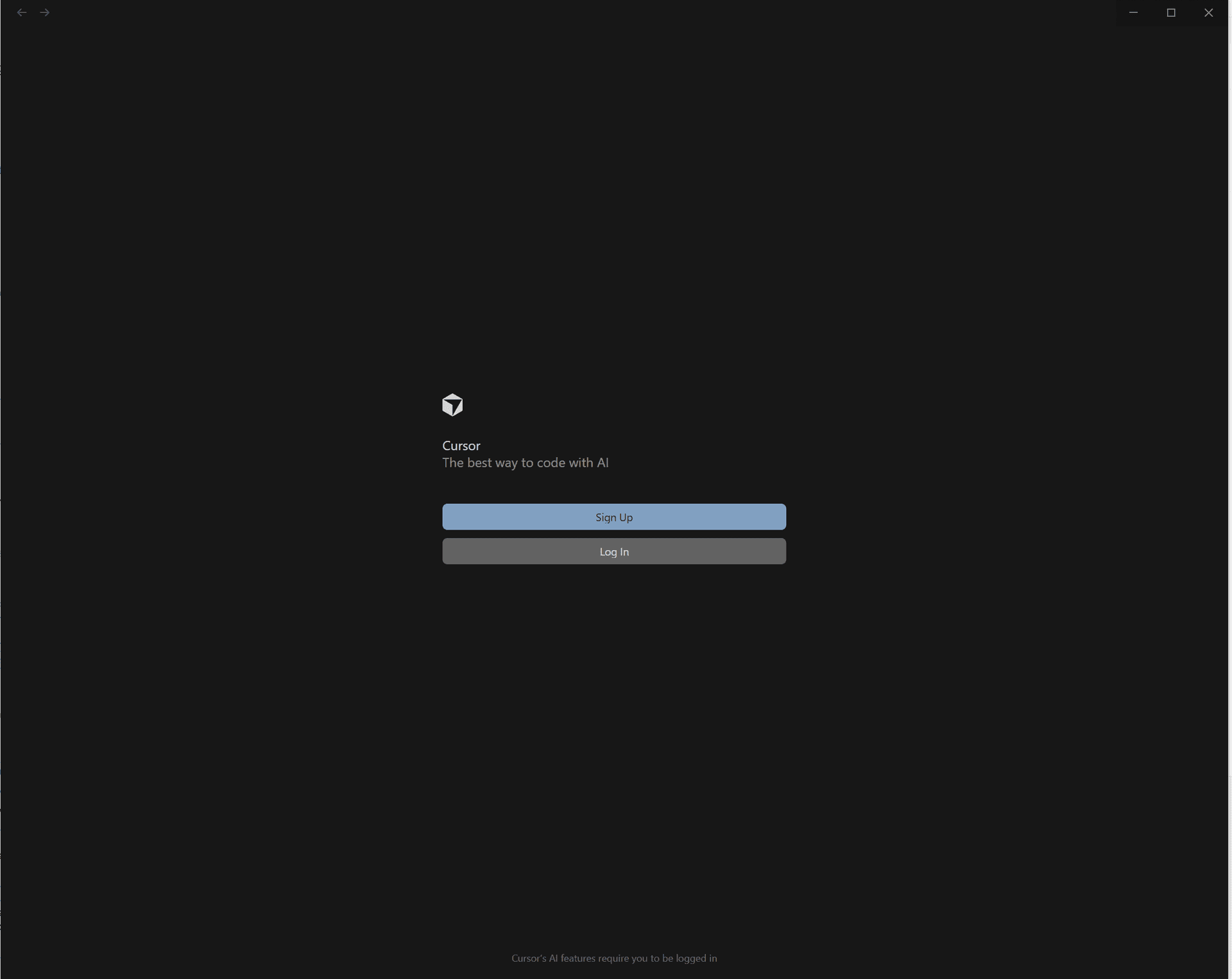
- Log in to your Cursor account
- Select and confirm the AI model you want to use (Claude, GPT, or others)
This only needs to be done once. The next time the same project is opened, Cursor will remember your login and configuration and go straight to work.
Authorize Shell Commands the First Time
The first time WinClaw executes shell commands through Cursor, a security authorization prompt will appear. Click "Approve" once in the Cursor window, or add common commands to the allowlist in Settings.
After setup is complete, you won't need to touch your computer for subsequent operations.
Command Reference
The agent_cursor_ui tool runs as a background daemon process. Start it like this:
.\agent_cursor_ui.exe daemon start -s winclaw.cc --folder "F:\projects\your-project"
Parameter reference:
| Parameter | Description |
|---|---|
-s winclaw.cc | WinClaw server address to connect to |
--folder | Path to the project directory you want to control |
Parallel Projects
WinClaw supports controlling multiple projects simultaneously:
- Project A: Review the code I just committed
- Project B: Add an API description to the documentation
- Project C: Run the tests and see if any are failing
Send three instructions at once, and three Cursor windows work in parallel on your computer. You're out and about, waiting for the reports to come in.
This is real "leverage" in the AI era — your time is spent on decisions, and execution is handed off to AI.
How Is This Different from Remote Desktop?
Many people's first reaction: "Isn't this just remote control? Doesn't TeamViewer do the same thing?"
| Dimension | Remote Desktop (TeamViewer) | WinClaw |
|---|---|---|
| How you operate | You simulate mouse and keyboard on your phone, operating step by step | You state your goal, AI figures out how to do it and executes |
| Network requirements | Needs a stable high-speed connection; lag makes it unusable | Async execution — send the instruction and put your phone away |
| Usage scenario | You must watch the screen and participate throughout | Give the instruction, go do something else, AI finds you when done |
| What's required of you | You need to know every step of the operation | You just need to clearly state what you want |
The core difference: remote desktop is "you operating your computer remotely." WinClaw is "you hired an AI employee to operate your computer for you."
FAQ
Cursor didn't auto-login when opening a project for the first time?
The first time you use it, you need to manually log in to your Cursor account and select an AI model in the Cursor window. Once done, subsequent opens of the same project will go straight to work.
Authorization prompts keep appearing?
In Cursor's Settings → Security, add common commands (like git) to the allowlist. After that, no more authorization prompts will appear.
Should I choose agent_cursor or agent_cursor_ui?
Beginners should use agent_cursor_ui — no extra configuration needed, works right out of the box. If you need faster execution speed or want to integrate into an automated pipeline, choose agent_cursor (requires Cursor CLI to be installed first).
Can I control multiple different projects at the same time?
Yes. You can start separate agent_cursor_ui daemon instances for different projects, then send multiple task instructions in WinClaw simultaneously. Multiple Cursor windows will work in parallel.