Troubleshooting
How to diagnose and fix common errors in WinClaw.
This section covers common errors you may encounter while using WinClaw and how to resolve them.
Service Startup Failure
After launching WinClaw, if you see a page like this in your browser, it means the backend engine service failed to start:
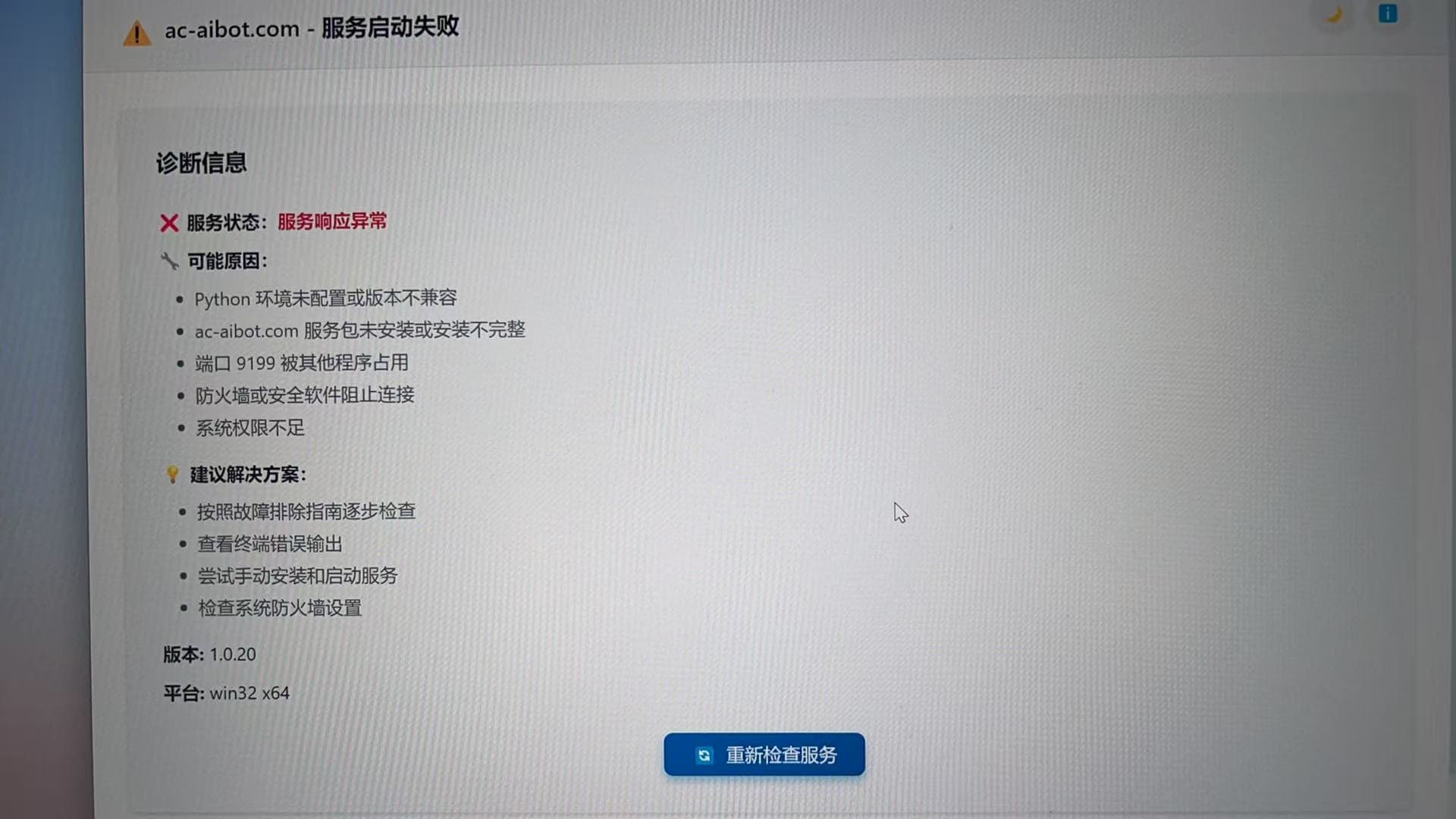
The page lists several possible causes:
- Python environment not configured or version incompatible
- winclaw.cc service package not installed or installation incomplete
- Port 9199 occupied by another program
- Firewall or security software blocking the connection
- Insufficient system permissions
Find the Actual Error
The page only shows possible causes. To know what actually went wrong, check the engine log:
Open File Explorer, navigate to the path below, and open app.log with any text editor:
C:\Users\<username>\.auto-coder-rag\logs\app.log
Replace
<username>with your Windows username, e.g.C:\Users\Alice\.auto-coder-rag\logs\app.log
The log file records detailed error information from the engine startup process, showing exactly which step failed.
Installation Scope and Permissions (Windows)
During installation, you will be asked who this app should be installed for. We strongly recommend choosing "Only for me", which usually does not require administrator privileges:
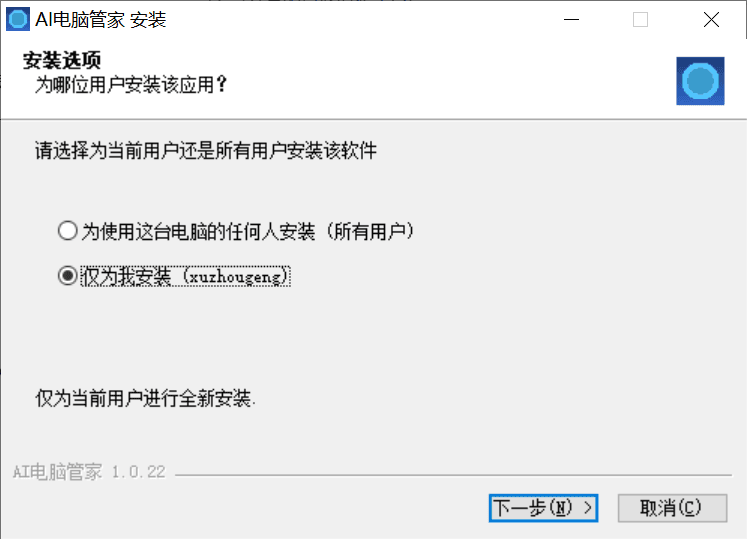
If you choose "Install for anyone who uses this computer (all users)", the installer usually needs administrator privileges to write into directories such as Program Files.
Without elevation, the engine may later fail on startup with PermissionError: [WinError 5] (Access is denied):
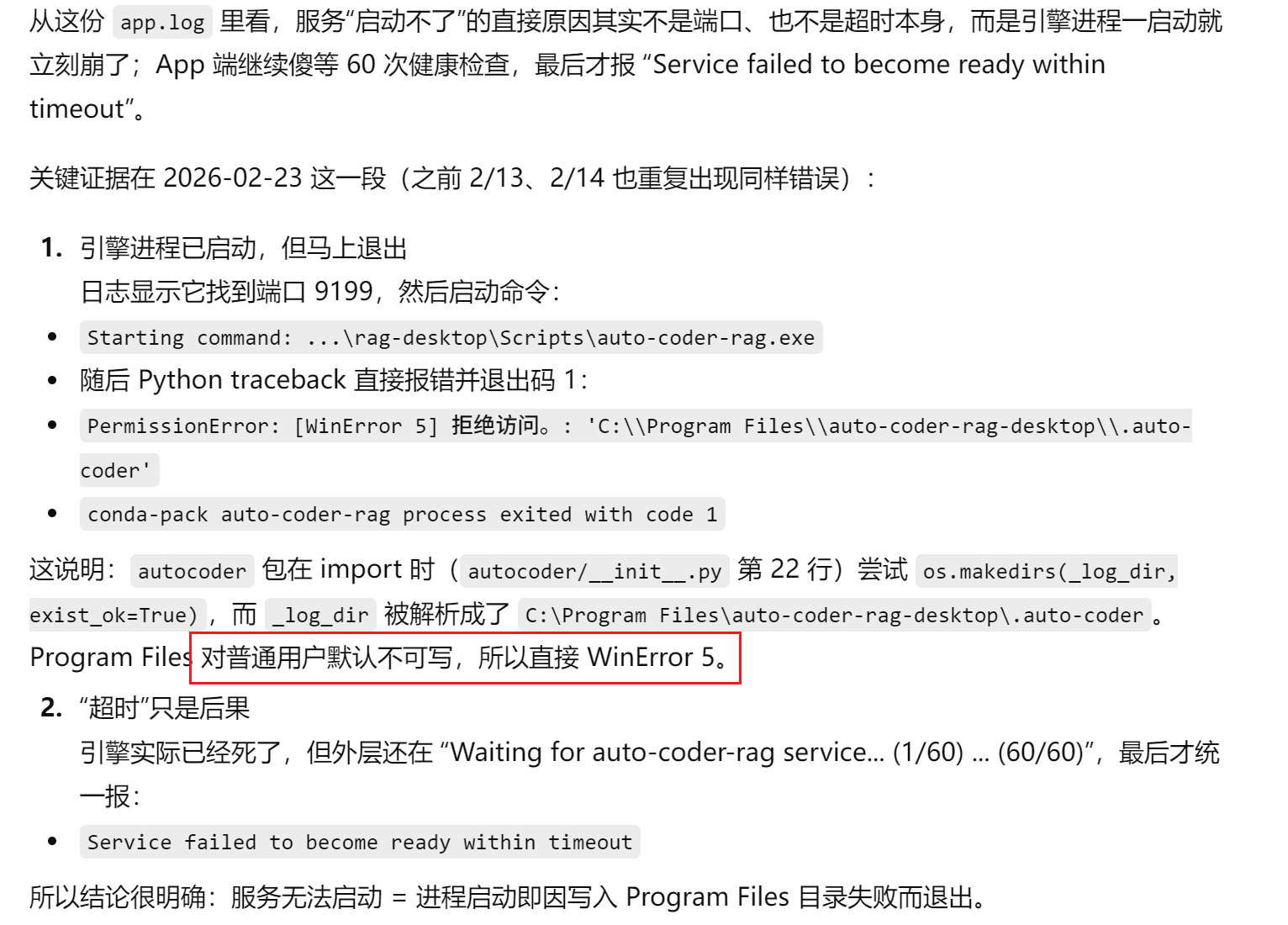
Use this rule of thumb:
- Personal usage: choose "Only for me"
- Required all-users installation: right-click the installer and select "Run as administrator"
Common Errors and Fixes
Windows path length limit (check this first)
Windows 10 enforces a maximum path length of 260 characters by default. Some files bundled inside WinClaw have longer paths, and when the installer tries to extract them, Windows silently truncates or skips them — resulting in an incomplete installation and a failed service startup.
This issue can also appear as EPERM: operation not permitted, rename ... in logs or the error page. If you see this rename failure, treat it as a likely path-length issue first:

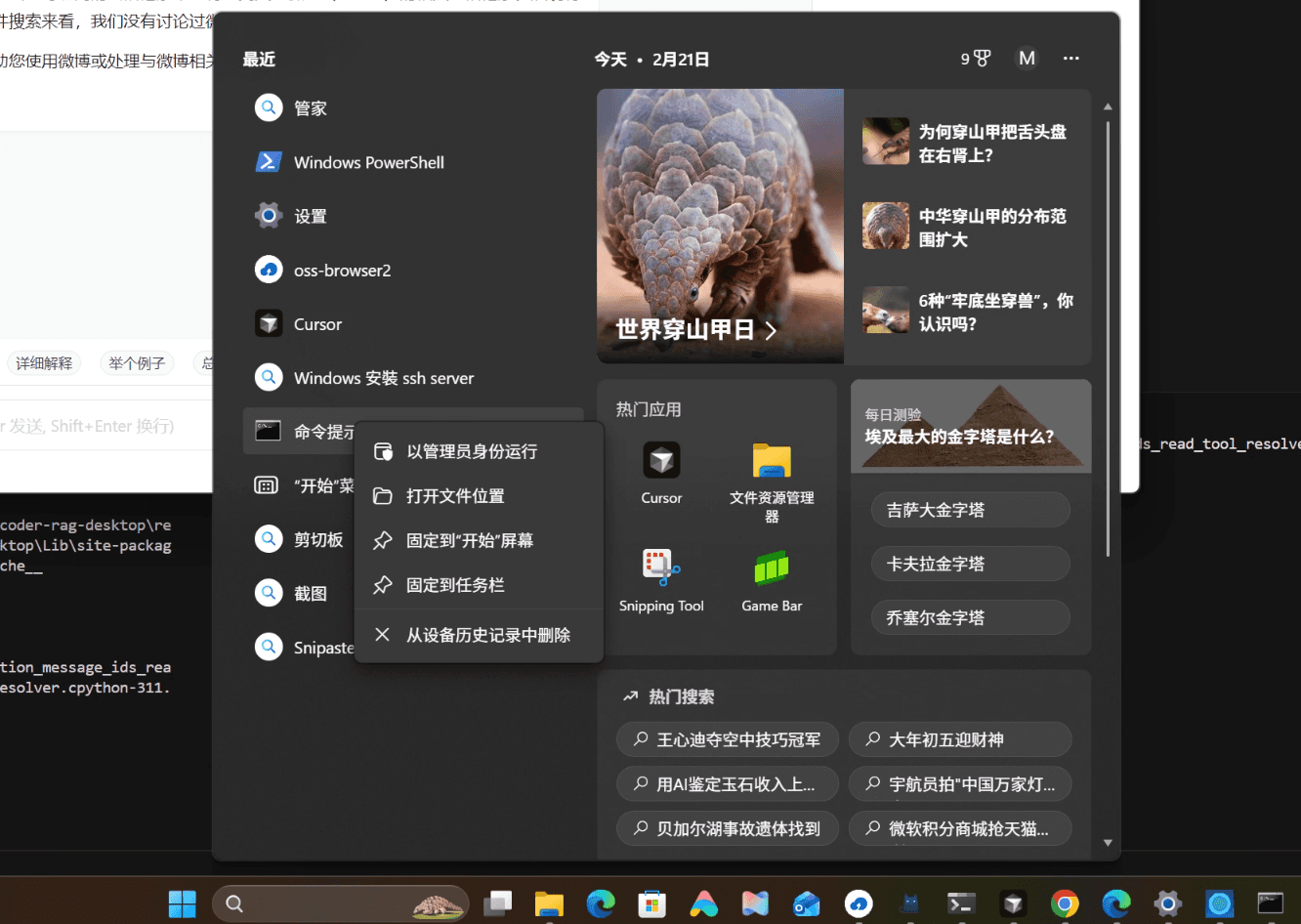
Step 1: Open Command Prompt as Administrator
Click the Start menu, type "cmd" in the search box, right-click the Command Prompt result, and select "Run as administrator":
Step 2: Run the registry command
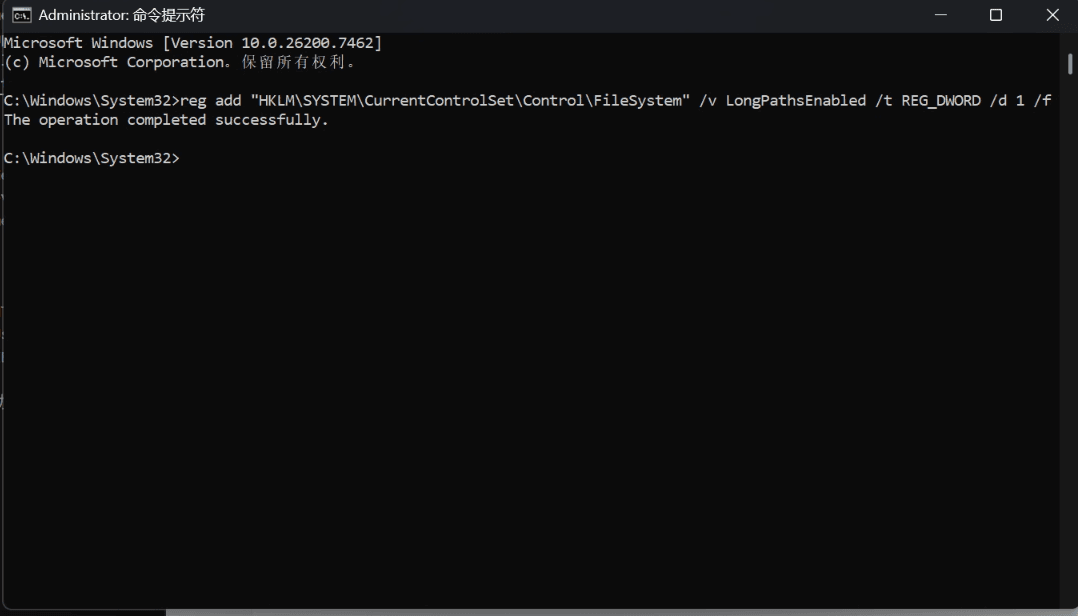
In the Administrator Command Prompt window, type the following command and press Enter:
reg add "HKLM\SYSTEM\CurrentControlSet\Control\FileSystem" /v LongPathsEnabled /t REG_DWORD /d 1 /f
When you see The operation completed successfully., the command has worked:
Once done, reinstall WinClaw.
Port 9199 already in use
If the log contains something like Address already in use or mentions port 9199, another program is occupying that port.
Open Task Manager, find the process using the port and end it, then restart WinClaw. You can also identify the process via the command line:
netstat -ano | findstr :9199
Note the PID shown, then end that process in Task Manager.
Firewall or security software blocking
If the log shows connection refused errors, temporarily disable your firewall or security software and try again. If that fixes it, add WinClaw to the software's allowlist.
Incomplete installation
If the log reports missing modules or files, try reinstalling WinClaw: fully uninstall it, clean up any leftover files, then download and install the latest version fresh.
Python environment issue
WinClaw ships with a built-in Python environment — you don't need to install Python manually. If the log shows Python-related errors, verify that the installer downloaded completely (it may have been blocked by antivirus software or interrupted mid-download).
Still Stuck?
Send the contents of app.log to official support for faster diagnosis:
- Official website: https://winclaw.cc
- Documentation: https://docs.winclaw.cc