Browser Automation
Let AI assistant control your browser to open web pages, search information, and fill forms.
WinClaw has built-in browser automation capabilities using CDP (Chrome DevTools Protocol) to control your browser, letting the AI assistant help you with various web operations.
Supported Browsers
Currently supported browsers:
- Google Chrome
- Microsoft Edge
Other browsers are not supported yet. Please ensure you have Chrome or Edge installed.
Install agent-browser Tool
Before using browser automation, you need to install the agent-browser tool from the Tool Market:
- Go to the Tools page and click Tool Market
- Find
agent-browserand click install
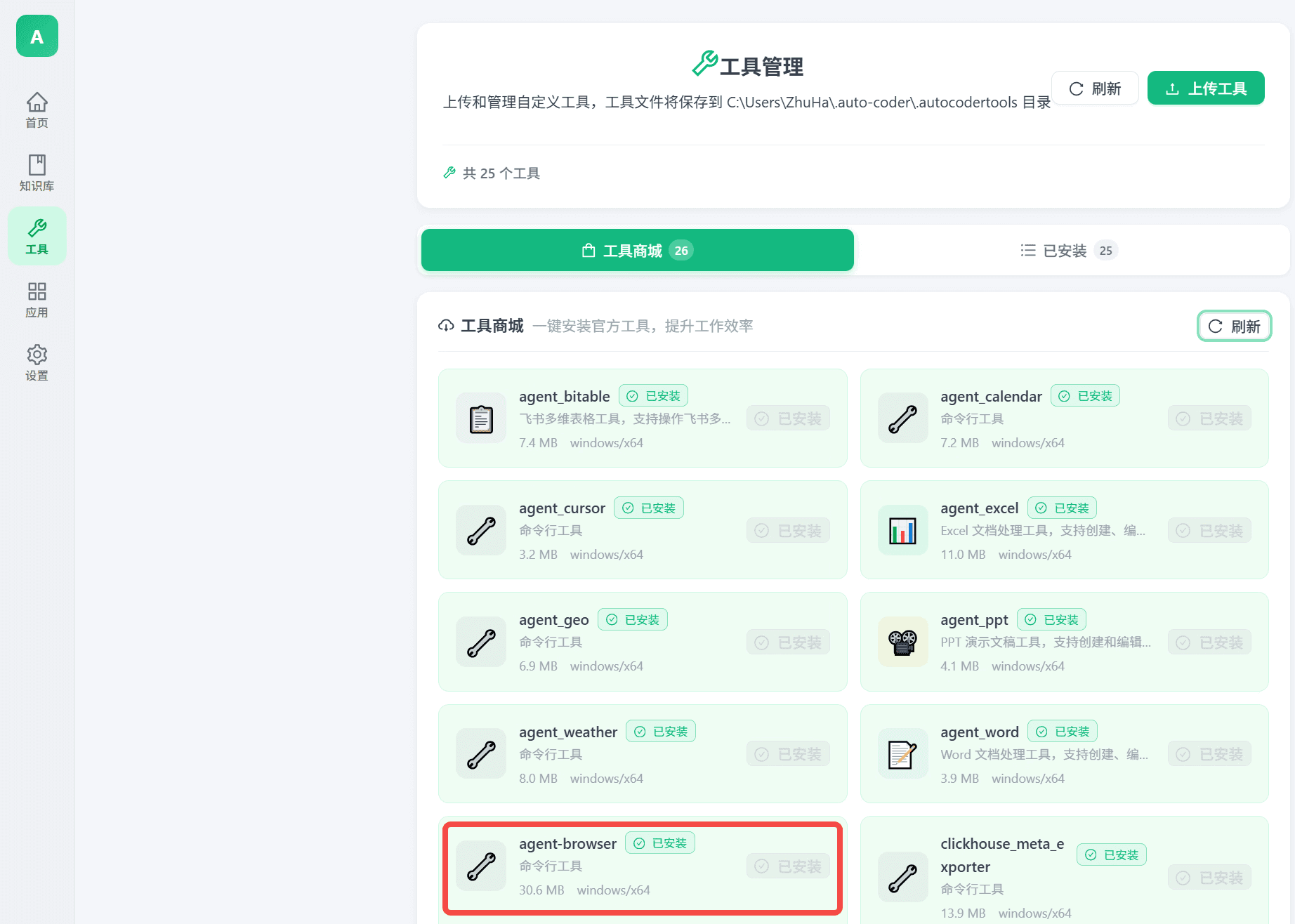
Once installed, you can start using the browser automation feature.
Start the Browser
Enter a command like this in the chat:
Start browser with agent-browser
The AI assistant will automatically complete the following steps:
- Check existing browsers: Test CDP connection on port 9222 to confirm no browser instances are running
- Start browser: Use
agent-browser daemon start --browser chromecommand to launch Chrome with remote debugging enabled - Verify status: Use
agent-browser daemon statusto confirm the browser daemon is running properly - Test functionality: Open a sample webpage to verify browser automation is working
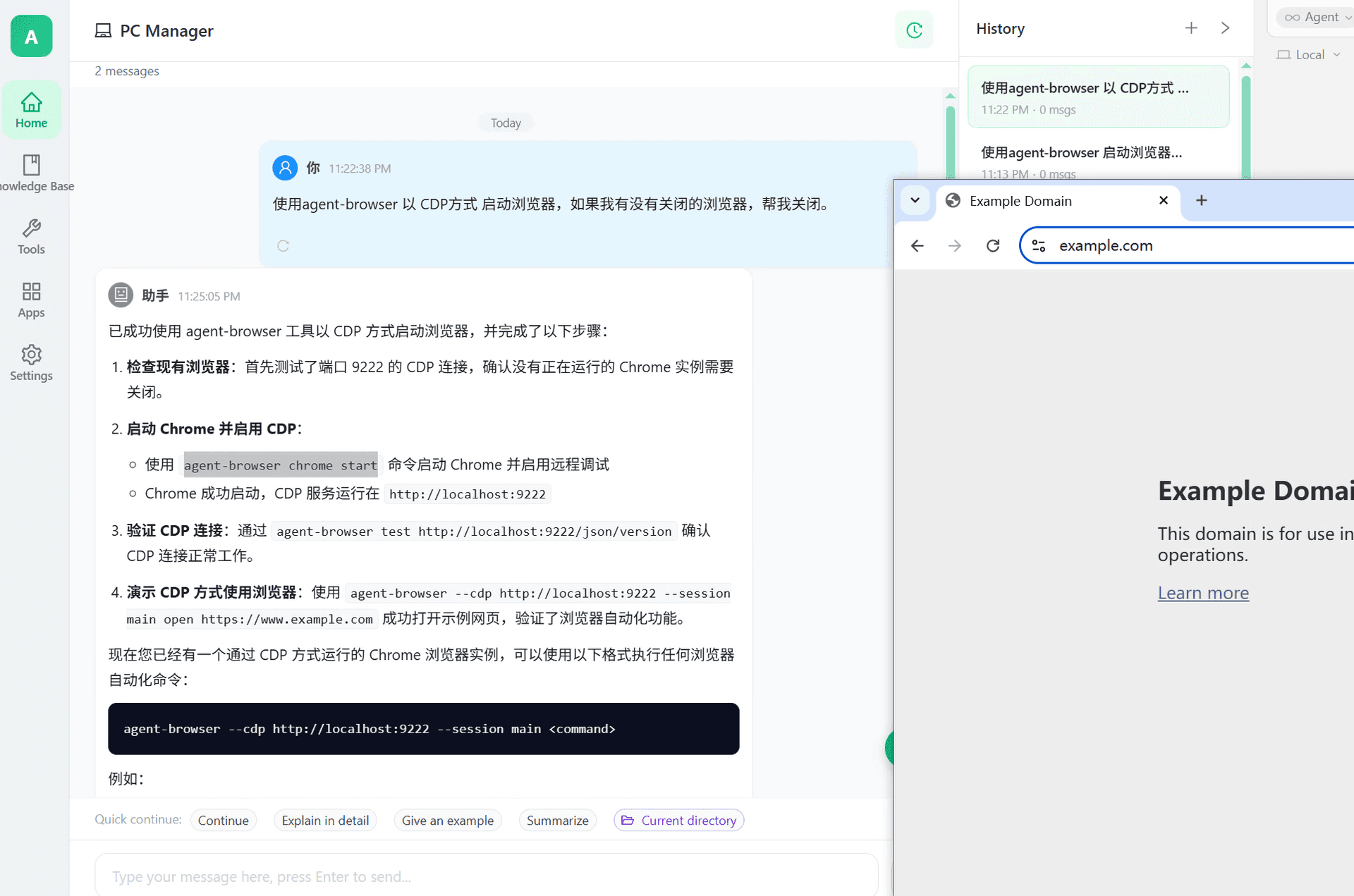
After successful startup, you'll see a new browser window open — this is the browser that AI can control.
Manual Start (Optional)
You can also manually start the browser via the command line. Navigate to the tools installation directory and run the following commands:
- Start the browser:
.\agent-browser.exe daemon start --browser chrome
- Check the browser status:
.\agent-browser.exe daemon status
If the status shows no errors, the browser is successfully started and ready. You can go back to WinClaw and start using the browser automation feature.
Use the Browser
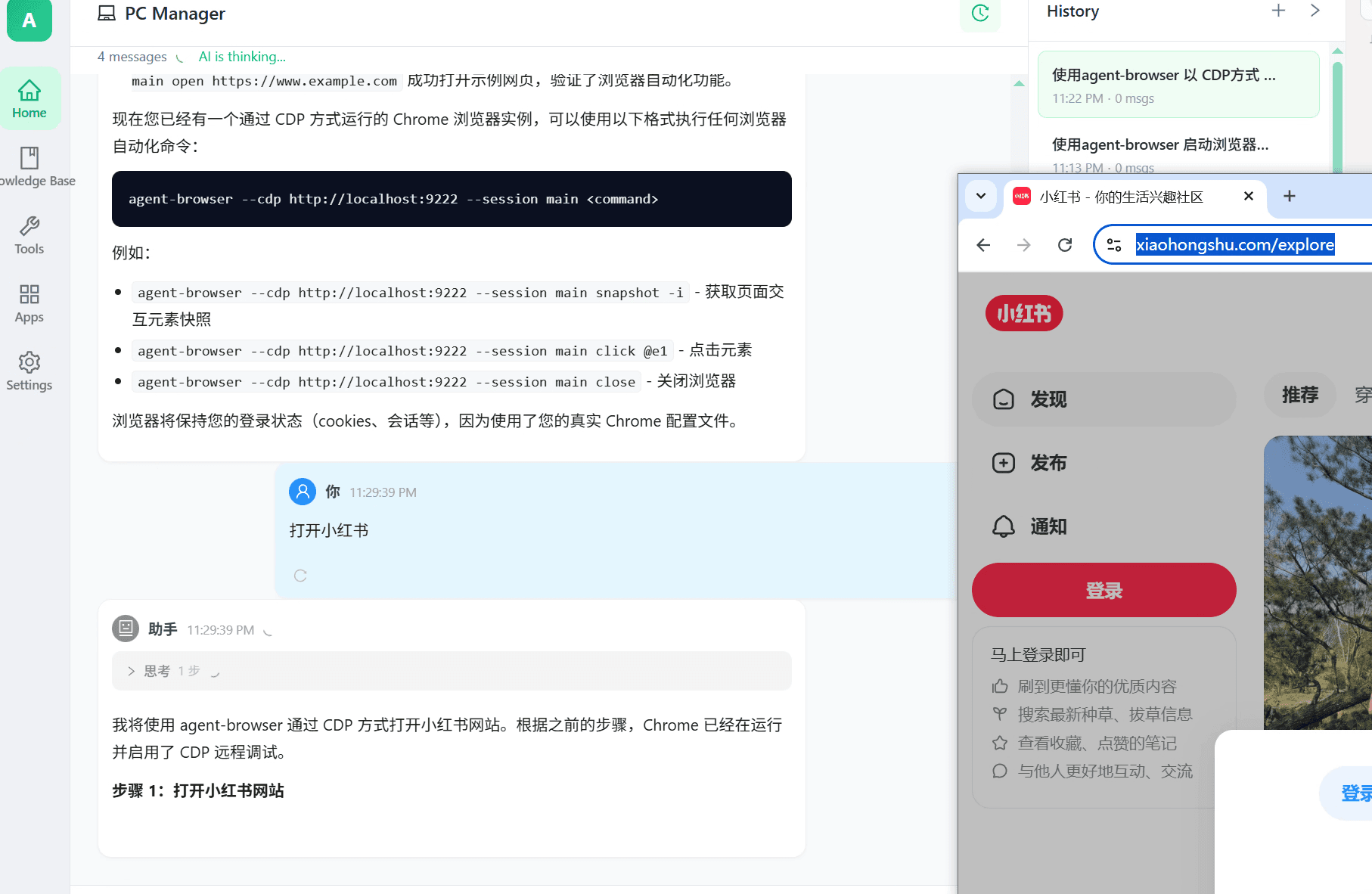
Once the browser is running, you can use natural language to have AI help with various tasks:
Open Xiaohongshu
The AI will automatically open the corresponding website:
More Examples
| Command Example | Description |
|---|---|
Open Google | Open Google homepage |
Search for latest AI news | Search keywords in search engine |
Check the weather in Beijing | Open weather website and search |
Open Amazon and search for headphones | Open website and search for products |
Take a screenshot of the current page | Capture page snapshot |
Maintain Login Status
The AI-controlled browser uses your real Chrome profile, which means:
- Cookies preserved: Logged-in websites stay logged in
- Sessions preserved: Browsing history, bookmarks are retained
- Settings preserved: Your browser personalization is not affected
Tip: Log in to Frequently Used Websites First
To help AI better complete automation tasks, we recommend manually logging into your frequently used websites after the first launch:
- Shopping sites like Amazon, eBay
- Social platforms like Twitter, Instagram
- Utility sites like email, cloud storage
- Company internal systems
Once logged in, AI can subsequently operate these websites in the logged-in state.
Keep the Browser Running
Recommendation: Don't close the AI-controlled browser window after starting.
Reasons:
- Closing it requires restarting
agent-browser - Keeping it running allows AI to execute browser tasks anytime
- Login status will remain active
If you temporarily don't need the browser, minimize the window instead of closing it.
Common Commands
AI uses these commands behind the scenes to control the browser:
| Command | Description |
|---|---|
agent-browser daemon start --browser chrome | Start Chrome with CDP enabled |
You don't need to remember these commands — just describe what you want to do in natural language, and AI will automatically choose the appropriate command.
FAQ
Port occupied error when starting?
This means another browser instance is running. Close all Chrome/Edge windows and try again.
Browser started but AI can't control it?
- Confirm the browser was started through AI, not opened manually
- Check if CDP port 9222 is working properly
- Re-enter the start command
What if a website requires login?
For first-time use, manually log in after AI opens the website. The login status will be saved, and AI can subsequently operate in the logged-in state.
How to use Edge instead of Chrome?
You can specify Edge:
Start Edge browser with agent-browser
Can I control multiple browser windows simultaneously?
Currently supports a single browser instance. For multiple pages, AI will open multiple tabs in the same browser.