Tool Market
Install official tools with one click from the Tool Store, or upload custom tools to extend AI capabilities.
The power of WinClaw lies in its rich tool ecosystem. Through the Tool Market, you can install various official tools with one click, or upload your own custom tools to give your AI assistant more capabilities.
Access Tool Management
Click the Tools icon in the left navigation bar to enter the Tool Management page.
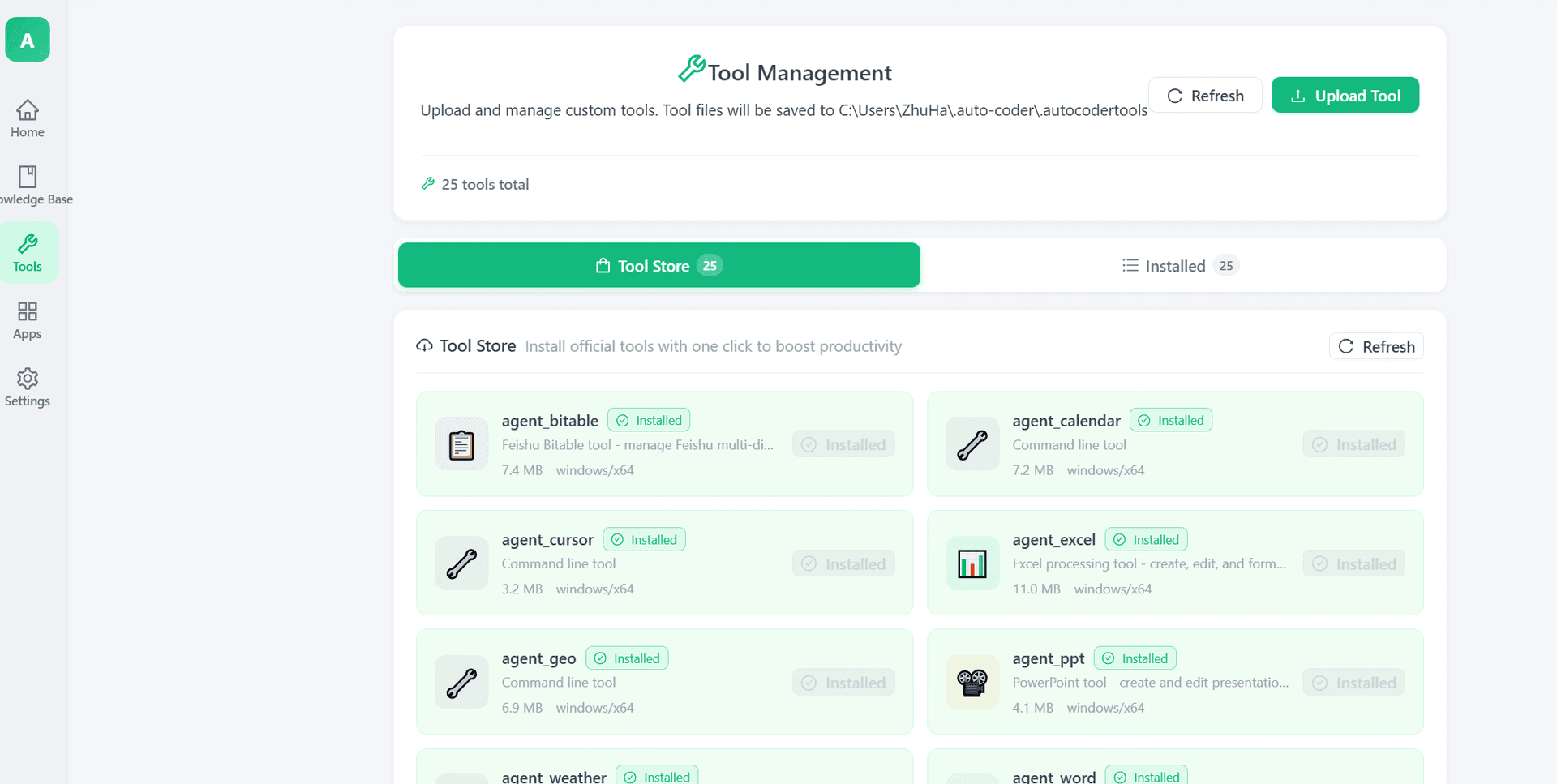
The page is divided into two sections:
- Tool Store: Official tool store with various pre-built tools
- Installed: List of installed tools
Install from Tool Store
The Tool Store offers a rich collection of official tools covering office work, calendar, weather, and more.
Available Tools
| Tool Name | Description |
|---|---|
| agent_bitable | Feishu Bitable tool for managing multi-dimensional tables |
| agent_calendar | Calendar tool for managing schedules and reminders |
| agent_cursor | Command line tool for executing system commands |
| agent_excel | Excel processing tool for creating, editing, and formatting spreadsheets |
| agent_geo | Geolocation tool for getting location information |
| agent_ppt | PowerPoint tool for creating and editing presentations |
| agent_weather | Weather tool for querying weather information |
| agent_word | Word tool for creating and editing documents |
Installation Steps
- Find the tool you need in the Tool Store list
- Click the Install button on the right side of the tool (shows as "Installed" when already installed)
- Wait for the download to complete, and the tool is ready to use
Each tool displays the following information:
- Name: Unique identifier of the tool
- Description: What the tool does
- Size: Package size (e.g., 7.4 MB)
- Platform: Supported operating system (e.g., windows/x64)
- Status: Installed or not installed
Tip: Click the Refresh button in the top right corner to refresh the tool list and get the latest tools.
Upload Custom Tools
In addition to official tools, you can upload your own tools to extend the AI assistant's capabilities.
Upload Steps
- Prepare your tool file (following WinClaw tool specifications)
- Click the Upload Tool button in the top right corner
- Select and upload the tool file
- After successful upload, the tool will appear in the Installed list
Uploaded tool files are saved in the local directory:
C:\Users\{username}\.auto-coder\.autocodertools
Tool Development
If you want to develop your own tools, you need to follow WinClaw's tool specifications. A tool is essentially an executable program that the AI assistant calls to complete specific tasks.
Basic requirements for tool development:
- Support command line invocation
- Accept input parameters in the specified format
- Return structured execution results
Manage Installed Tools
In the Installed tab, you can view and manage all installed tools:
- View tool installation status
- Uninstall tools you no longer need
- Update tools to the latest version
Using Tools
After installing tools, the AI assistant automatically recognizes and calls the appropriate tools when needed. For example:
- When you say "Check tomorrow's weather", AI will call the
agent_weathertool - When you say "Create an Excel spreadsheet with this data", AI will call the
agent_exceltool - When you say "Create a PPT for me", AI will call the
agent_ppttool
You don't need to manually specify which tool to use — the AI automatically selects the right tool based on your request.
Multimedia Tools
MiniMax setup for video, speech, image, and music has been moved to a dedicated page:
FAQ
What if tool installation fails?
- Check if the network connection is working
- Click Refresh and try again
- Make sure you have enough disk space
Uploaded tool not working?
- Confirm the tool file format is correct
- Check if the tool follows WinClaw specifications
- Restart WinClaw and try again
How do I update a tool?
Currently, updating a tool requires uninstalling the old version first, then reinstalling the latest version from the Tool Store.