Scheduled Reporting

Set a rule once and let AI automatically collect information and generate reports on schedule — you just read the briefings.

Have you ever felt this way: every morning you wake up and the first thing you do is open a dozen apps to browse for updates — what's new on X? What's happening in the industry? Half an hour gone, coffee's gone cold.

WinClaw's scheduled task feature says: let AI handle this. You set the rules, AI works on schedule, and when it's done — you get a briefing.

What Are Scheduled Tasks?

Scheduled tasks upgrade AI from a "passive assistant" to a "proactive employee":

  • Chat mode: You say something, AI does it once — you push, it moves
  • Scheduled tasks: You set a rule once, AI runs it automatically on repeat — set the alarm, it wakes up and gets to work on time

Perfect for needs that are repetitive, time-based, and don't require you to be present:

  • Track industry trends on X (Twitter)
  • Monitor stock market movements every ten minutes
  • Watch competitor websites for new releases
  • Prepare a "Daily Briefing" every morning

Create a Scheduled Task

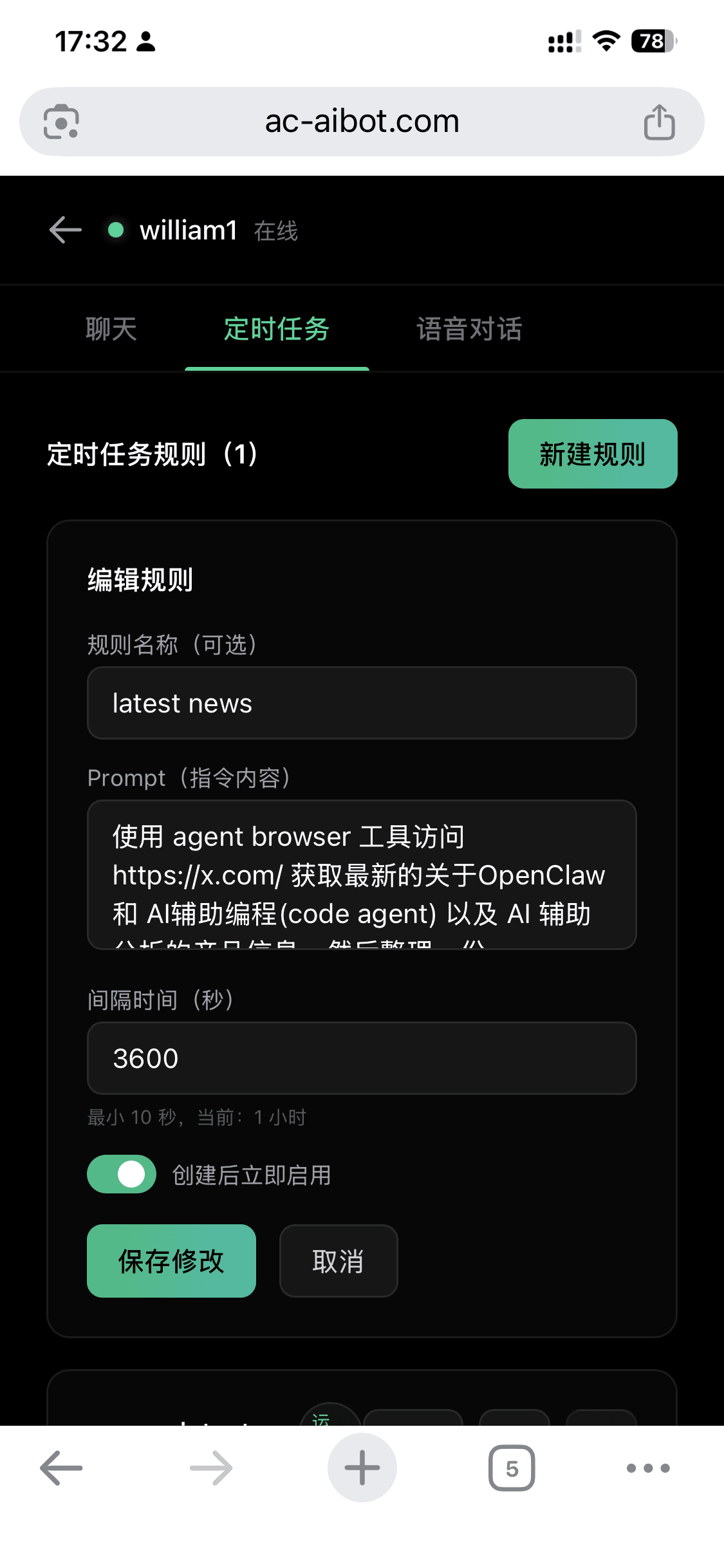
Open WinClaw on your phone, tap the "Scheduled Tasks" tab at the top, then tap "New Rule":

Create a scheduled task rule

Fill in the following:

FieldDescriptionExample
Rule NameGive the task a name for easy managementlatest news
PromptTell AI what to do in natural languageUse agent browser to visit x.com, get the latest AI news, organize into a markdown report
Interval (seconds)How often to run — minimum 10 seconds3600 (every hour)
Enable ImmediatelyToggle on to start the first execution right after saving

No cron expressions, no config files, no command line. It's like sending your assistant a message: "From now on, check X for AI news every hour and send me a summary."

View Task Running Status

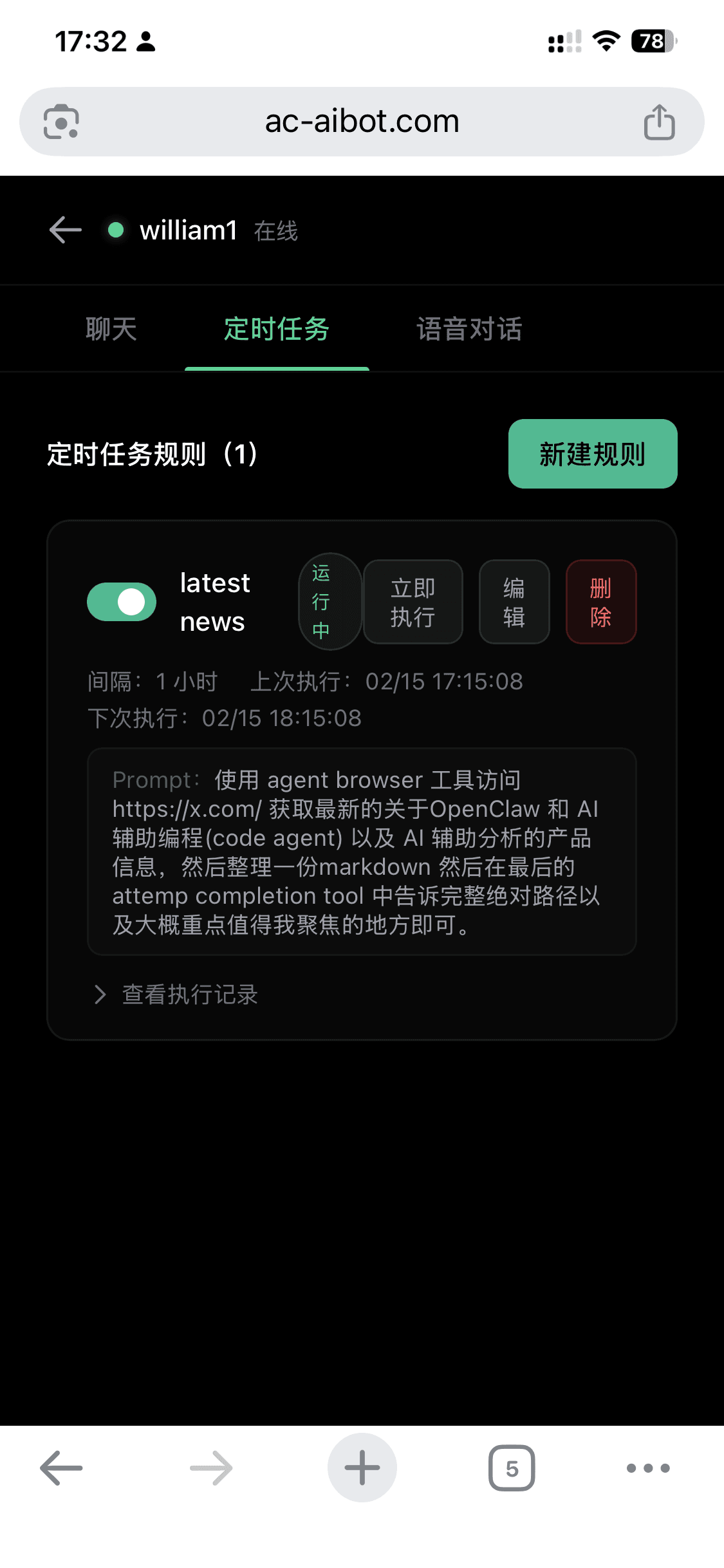
After creating a rule, go back to the scheduled tasks list — the task runs quietly in the background:

Scheduled task running status

The task card shows complete runtime information:

  • Running — green badge, the task is executing as scheduled
  • Interval: 1 hour — automatically triggered every hour
  • Last execution — exactly when it last ran, clearly shown
  • Next execution — exactly when it will run next, no guessing

Four action buttons available at any time:

ButtonFunction
Run NowDon't wait for the next schedule — run immediately
EditModify the prompt or interval
DeletePermanently remove this rule
Toggle switchTurn off to pause, turn on to resume

After setup, lock your screen and put your phone away. AI works in the background on schedule, saves the results, and waits for you to check in.

View Execution Records and Reports

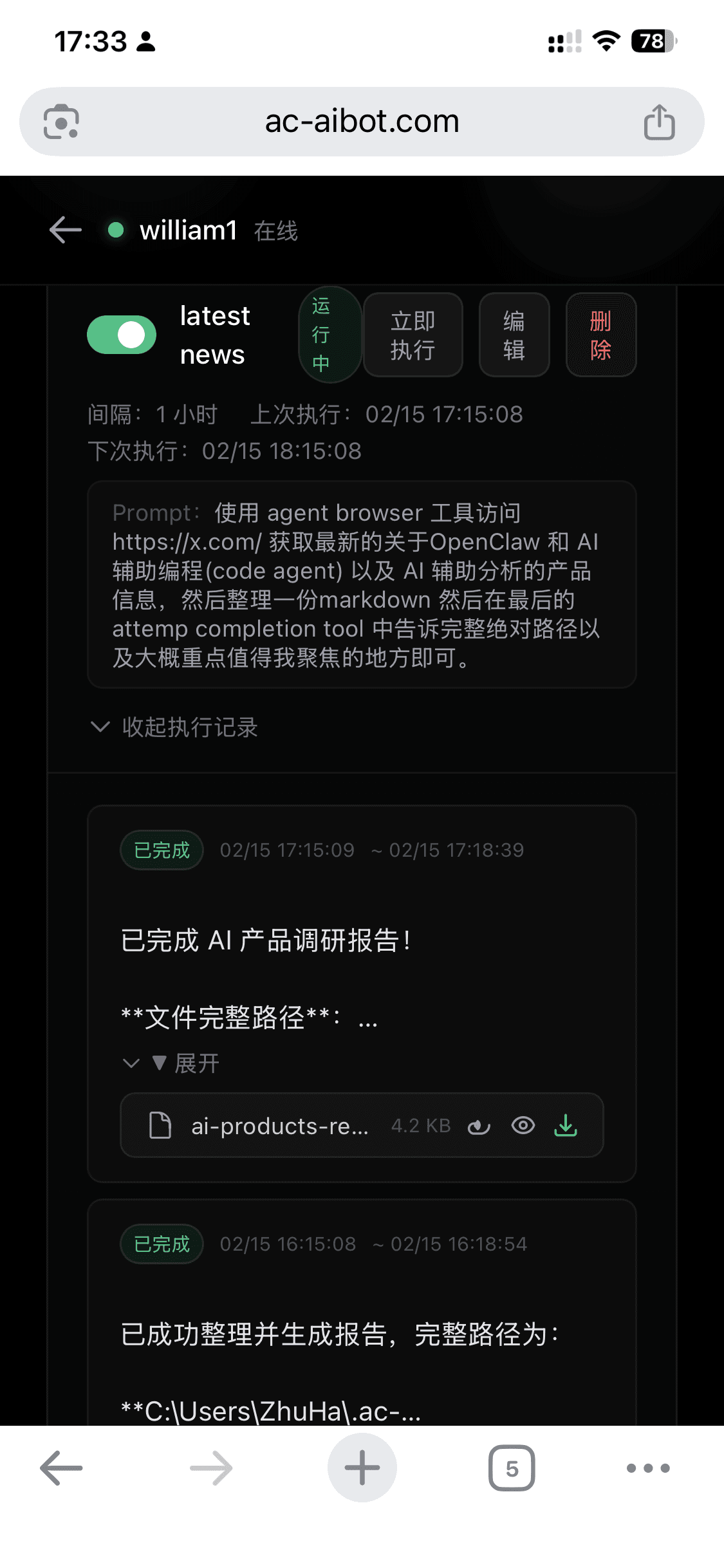
Tap "View Execution Records" to see all historical results neatly listed:

Execution records and reports

Each execution record contains:

  • Time range — e.g., 02/15 17:15:09 ~ 02/15 17:18:39 — AI took about 3 minutes to complete a full intelligence gathering run
  • Status — green "Completed" badge at a glance
  • Report file — not a pile of raw links, but a formatted markdown report automatically saved to your computer
  • Preview and download — tap the eye icon to view the report content directly on your phone

Wake up in the morning, open WinClaw, and the latest industry intelligence is already organized. No need to scroll X, browse news, or summarize yourself. Pick up your coffee, read the briefing.

Common Use Cases

Use the browser to visit https://x.com/, get the latest information on 
AI-assisted coding, AI Agents, and large language models — including 
key discussions and trending products. Organize into a briefing with 
key events, notable products, and trend observations.

Interval: 3600 seconds (1 hour)

AI checks X every hour and distills the "worth reading" content into a briefing. You only need to glance at it morning, noon, and night — or don't check until the weekend and binge-read the whole week's briefings.


Market Monitoring Every Ten Minutes

Use the browser to check the latest stock market data — major indices 
and the specific stocks I'm tracking. Their current prices and 
percentage changes. If any position shows unusual movement (over 3% 
change), highlight it prominently at the top of the report.

Interval: 600 seconds (10 minutes)

No need to stare at the market all day or install multiple trading apps. AI scans every ten minutes and only flags the unusual — your attention goes only where it matters.


Daily "Must-Read" Briefing Every Morning

Visit tech news sites (TechCrunch, Hacker News), general news, and 
AI topics on X.com. Compile a "Daily Must-Read Briefing" with three 
sections: [Tech] [Finance] [Industry]. No more than 5 items per 
section, each item as one-sentence summary + original link.

Interval: 86400 seconds (24 hours)

Like having a personal news editor who picks the most important items from the information flood every day, formats them neatly, and has it ready when you wake up.


Monitor Competitor Websites Every 30 Minutes

Visit the following competitor websites (list URLs), and check for 
new product launches, pricing changes, or blog updates. If any changes 
are found, record them in detail with timestamps. If nothing changed, 
briefly note "No new changes detected in this check."

Interval: 1800 seconds (30 minutes)

AI watches for you — you only read the "something changed" entries. A month in, your grasp of competitor movements might be sharper than their own employees'.

Security and Control

Scheduled tasks run automatically, but you're always in control:

  • Pause anytime — flip the toggle and the task stops immediately
  • Edit anytime — change the prompt or interval, tap save, takes effect instantly
  • Delete anytime — one tap to remove, clean and complete
  • Transparent execution records — every run's time, result, and output files are fully viewable

There's no "AI doing things behind your back" — every execution is recorded, every report is previewable.

FAQ

What is the minimum interval?

The minimum is 10 seconds. For information-gathering tasks, a reasonable interval (10 minutes or more) is recommended to avoid triggering rate limits on the target websites.

Are execution records kept indefinitely?

Historical execution records are preserved, and report files are automatically saved locally to your computer for preview and download at any time.

What happens if a task fails?

The execution record will show a failed status. You can tap "Run Now" to manually trigger another attempt, or review the failure reason, adjust your Prompt, and try again.

Can multiple scheduled rules run at the same time?

Yes. You can create multiple rules to track different topics, and they run independently in parallel.